01 — GOOGLE FONTS
Load Better Fonts
Stop using just Arial. Google Fonts gives you 1,500+ free fonts. Add a <link> tag in your <head> and use font-family in your CSS. That's it.
Individual Fonts — loaded from Google Fonts FONTS
DM Serif Display
The quick brown fox
font-family: 'DM Serif Display', serif;
Inter
The quick brown fox
font-family: 'Inter', sans-serif;
Playfair Display
The quick brown fox
font-family: 'Playfair Display', serif;
Bebas Neue
THE QUICK BROWN FOX
font-family: 'Bebas Neue', sans-serif;
Space Mono
The quick brown fox
font-family: 'Space Mono', monospace;
Caveat (Handwritten)
The quick brown fox
font-family: 'Caveat', cursive;
Font Pairing — heading + body that work together PAIRING
Pairing 1: Playfair Display + Inter
Elegant headlines need a clean partner.

When you pair a decorative serif heading with a neutral sans-serif body, both fonts look better. The contrast creates visual hierarchy without extra styling.

Pairing 2: Bebas Neue + DM Sans
BOLD HEADLINES GRAB ATTENTION

An all-caps display font for headlines paired with a friendly sans-serif body creates energy and keeps things readable.

Pairing 3: DM Serif Display + Caveat (accent)
A serif heading with a handwritten accent

Use handwritten fonts sparingly — for annotations, signatures, or one highlighted word. Never for body text.

02 — HIERARCHY
Big Left, Calm Right
The number one mistake students make: everything is the same size. Use size, weight, and color to tell people what to read first, second, and third.
Split Layout — bold heading left, body text right HIERARCHY
Say less.
Mean more.

Your visitors will scan before they read. Give them a big headline they can absorb in two seconds, then a calm paragraph that fills in the details.

This is the Apple approach: one bold statement, one clean explanation. No clutter.

03 — CARDS & CHAPTERS
Break It Into Pieces
Instead of one giant paragraph, break ideas into cards or "chapter" panels. Each chunk becomes a moment — a tip, a feature, a benefit.
Chapter Panel — soft background, clear heading CHAPTER
Turn walls of text into chapters.

A soft gradient background, generous padding, and a clear heading make even dense content feel intentional. Each "chapter" should contain one idea.

Text Cards — one idea per card CARDS
Callout Moments

Use cards to spotlight tips, warnings, or "don't miss this" ideas.

Easier to Scan

Smaller chunks reduce cognitive load and keep visitors engaged.

Reusable Pattern

Once you build a card style, you can reuse it on every page of your site.

04 — TIMELINE / STEPS
Tell It Like a Story
Long instructions become inviting when you turn them into a step-by-step visual timeline. The line is a CSS ::before pseudo-element.
Vertical Steps — numbered process TIMELINE
Step 1
Define the purpose.
What do you want this page to help someone understand or feel?
Step 2
Group the content.
Cluster related ideas together instead of spreading them everywhere.
Step 3
Choose a layout pattern.
Cards, timelines, checklists, split sections — pick what fits.
Step 4
Add subtle emphasis.
Use accent lines, gradient text, and soft color bands to guide the eye.
05 — TEXT EFFECTS
Make Words Visual
Gradient text, outlined text, rotating words, handwritten accents, and highlighted phrases. No images needed — just CSS.
Gradient Text — background-clip makes text colorful EFFECT
Design is how it works.
Outline Text — -webkit-text-stroke for hollow letters EFFECT
THINK DIFFERENT
Rotating Words — CSS animation swaps words in place EFFECT
Design for clarity. humans. impact.
Highlighted Text — background color behind key phrases EFFECT

People scan before they read. Highlighting one or two sentences per section helps visitors find the core idea instantly. Don't highlight everything — just the part that matters most.

Handwritten Accent — Caveat font for one word EFFECT
Build something real.
06 — CONVERSATION
Talk, Don't Lecture
Not all text has to sound like a textbook. Chat bubbles and speech bubbles make explanations feel human and approachable.
Chat Thread — iMessage-style back and forth CHAT
Why does my page feel so heavy?
Because all your ideas are in one block. Let's give them structure.
Do I have to delete anything?
Nope. We'll just move your text into cards, steps, and sections.
Speech Bubble — single callout quote BUBBLE
"You don't have to delete your words. You just have to give them room to breathe."
07 — BEFORE / AFTER
Show the Difference
Comparison layouts help students see how layout alone transforms the same content. Same words — completely different experience.
Side-by-Side Comparison COMPARE
Before

Wall of Text

A single paragraph with no headings, no breaks, and no emphasis. Everything looks equally important so nothing stands out.

After

Structured Story

Headings, cards, steps, callouts, and a clear reading path. Same words — completely different experience.

08 — CALLOUTS
Highlight What Matters
Four callout styles: tips, warnings, ideas, and design notes. Use the colored left border to signal the type at a glance.
Callout Boxes — colored border-left signals the type CALLOUT

Pro Tip

You don't need photos to make a page feel visual. Treat paragraphs like design elements by pairing them with space, icons, and hierarchy.

Avoid

Don't dump a whole story into one paragraph. If an idea takes more than five seconds to scan, break it up.

Try This

Pick one section on your site and rewrite it using cards, bullets, or a timeline. Same words — new experience.

Design Tip

Use one accent color per page. Consistency feels intentional; variety can look random.

09 — BADGES & TAGS
Label Everything
Pill-shaped badges turn concepts into scannable labels. Use them for skills, features, categories, or just vibes.
Tag Pills — hover to highlight TAGS
Minimal Readable Responsive Accessible Dark Mode CSS Grid Flexbox
Award Badges — emoji + label AWARDS
Best Readability
Most Human Tone
Clearest CTA
Fastest to Scan
10 — CREATIVE PATTERNS
Break the Rules
Comic panels, sticky notes, scrolling marquees. These patterns work best when used once or twice per page — not everywhere.
Comic Panels — bordered frames for mini-stories PANELS
Panel 1 — Problem

Everything is in one paragraph. Visitors get overwhelmed.

Panel 2 — Shift

You group the content into three key ideas.

Panel 3 — Result

The same words now feel easy to scan, understand, and remember.

Sticky Notes — rotated cards with shadow NOTES
One idea per card.
Let headings do the heavy lifting.
White space is not empty — it's guidance.
Marquee — auto-scrolling text row MARQUEE
Balance • Focus • Energy • Creativity • Curiosity • Practice • Balance • Focus • Energy • Creativity • Curiosity • Practice •
11 — APPLE-STYLE LISTS
Lists That Don't Look Like Lists
Stop using plain bullet points. Apple presents lists as visual experiences — feature cards, scrolling stories, spec tables, and expandable accordions. Same information, completely different impact.
Feature List — icon + title + one-line description FEATURE

Fast Performance

Loads in under a second, no matter the device.

Clean Design

Every pixel placed with purpose and intention.

Fully Responsive

Works on phone, tablet, and desktop.

Deployed Live

Real URL, real site, real visitors.

Grid List — card layout with images CARDS
project

Portfolio Site

A responsive portfolio built from scratch.

View Project →
project

Gallery Page

CSS Grid gallery with lightbox overlay.

View Project →
project

Landing Page

Hero, cards, and contact form.

View Project →
project

Video Showcase

Video hero with card grid below.

View Project →
Storytelling List — one feature per section, alternating layout STORY
design

Designed with intention.

Every element on the page serves a purpose. Nothing is random — spacing, color, and hierarchy all guide the eye.

code

Built with clean code.

Semantic HTML, organized CSS, and responsive layouts that work on every screen size without shortcuts.
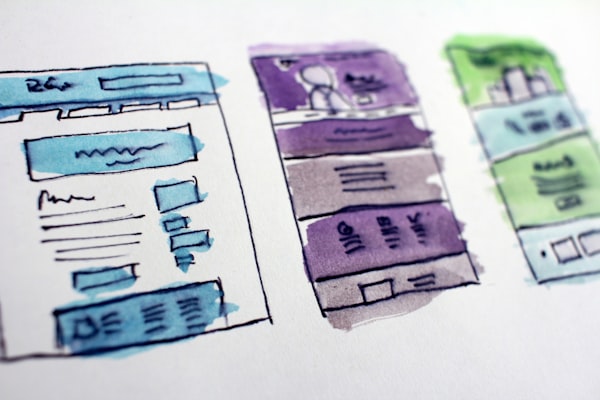
team

Shipped to the real web.

Not just a file on your desktop — a live site with a real URL, deployed on Netlify, accessible to anyone in the world.

Specification List — clean two-column data SPECS
FrameworkHTML5 + CSS3
Layout SystemCSS Grid + Flexbox
ResponsiveMobile-first, 3 breakpoints
FontsDM Sans + DM Serif Display
HostingNetlify (free tier)
Page Count5 pages
Load TimeUnder 1 second
Accordion — expand/collapse with <details> + <summary> FAQ
Do I need to know JavaScript? +
Not for this class. Everything here is built with HTML and CSS only. JavaScript is optional and used only for small interactions like toggles.
Can I use a template? +
You can use any of the starter templates from this playground as a starting point, but you must customize the content, colors, and images to make it your own.
How do I deploy my site? +
Push your code to GitHub, then connect the repo to Netlify. It takes about 2 minutes and gives you a free live URL that anyone can visit.
What makes a good portfolio? +
Clean layout, real projects (not placeholder text), proper spacing, responsive design, and a personal touch. Show who you are, not just what you built.
How many pages do I need? +
Quality over quantity. A strong single-page portfolio with 3-4 well-presented projects beats a 10-page site with placeholder content every time.
12 — CREATIVE BULLETS
Bullets That Don't Look Like Bullets
Plain bullet points are boring. Replace them with icons, colors, numbered steps, images, or remove them entirely and let spacing do the work.
Icon Bullets — replace dots with meaningful symbols ICONS
Use checkmarks, arrows, or themed icons
Helps users scan content quickly
Adds personality to the design
Works well for feature lists
Color-Coded Bullets — assign meaning with color COLOR
Green = success, complete, or positive
Blue = informational or neutral
Yellow = warning or in-progress
Red = error, critical, or negative
Purple = premium or highlighted
Numbered Steps — show sequence or process STEPS
1

Plan your content

Decide what information you need to present and who it's for.

2

Choose a layout pattern

Cards, timelines, icons, or minimal — pick what fits the content.

3

Build the HTML structure

Write semantic markup with proper headings and containers.

4

Style with CSS

Add spacing, colors, and typography to make it visual.

Image Bullets — thumbnails add visual context IMAGES
project

Portfolio Website

A responsive portfolio built with HTML and CSS from scratch.

project

Design System

A set of reusable components and color tokens.

project

UI Mockup

High-fidelity screens designed in Figma.

Minimal List — no bullets, just spacing + typography MINIMAL

Use clean design and whitespace

Let the spacing between items create the visual separation. No dots, no icons — just breathing room.

Focus on content clarity

When the writing is strong, it doesn't need decoration. Make the words do the work.

Feels modern and premium

Apple, Stripe, and Linear all use this approach. Remove the noise and let the content speak.